In preparation for my departure, I wanted to transfer all of my music from my work computer to my home computer. This is pretty simple – just transfer my music from my work computer onto my Maxtor OneTouch, take it home, and transfer the music onto my home computer – but I rely on all of my song ratings, accumulated over thousands of hours of listening while I work, to populate my iPod Shuffle with songs from the “My Top Rated Songs” Smart Playlist. I couldn’t find any information on how to transfer my music, while still retaining my song ratings, but I finally figured it out.

Before you do this, you’ll have to first transfer the actual files to your new computer. You may choose to burn CDs, DVDs, or use a thumb drive; but using a FireWire cable is easiest for large libraries, unless you have a portable hard drive.
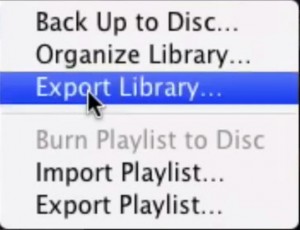
- Export the source iTunes library as an XML file (File>Export Library…). This will create a file that holds information about the location, song filenames, and *song rating*!
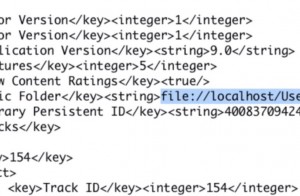
- Replace the file paths in your XML file with the path that the songs from the source library will be in when you import them. This path may point to your FireWire Drive, a DVD you have burned, or a temporary folder on your hard drive that you have copied your music to. Just to be sure of the new path, copy one of the files from this location to your library, export your destination library, and look at the file path to that song in the resulting XML file. To actually replace the file paths, I did a Find/Change in TextWrangler.
- Set the preferences in iTunes in your source library to “Copy files to iTunes Music folder when adding to library.” This is under “Advanced.”
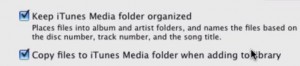
- Import your library (File>Import).
- Delete redundant files. If you’re like me, you have some duplicate songs in your multiple libraries. This is a tedious task, but I plan to do it over time.
Of course, you can prevent all of this by being organized in the first place. I probably should have just had an iPod that I synched with my home computer and brought to work.
[UPDATE - 07/19/2007] - Some of you have left such helpful comments, I wanted to point them out:
- if you just have the hard drive of your old PC, Ben has shared with us how to make the transfer
- if you aren’t keen on messing with XML files - and play count isn’t important to you - Oden has a simple process, involving smart playlists, for retaining song ratings when you transfer your iTunes library.
- Collin has a simple way to find out those duplicate songs that you may end up with when transferring
- Aaron devised a clever way to transfer while retaining playlists
- If you are transferring between Macs, pbaron has a method involving FireWire mode.


Paul said,
August 17, 2005 @ 12:14 pm
I just drag and drop the entire Music folder from one Mac to the other. Just confirm the replacement and everything is retained. I’ve done it a dozen times. You’ll have to confirm registration on iTunes purchase selections before listening, but other than that it couldn’t be simpler.
DougAdams said,
August 17, 2005 @ 1:30 pm
Moving your iTunes Music folder
kadavy said,
August 17, 2005 @ 2:30 pm
Thanks guys. Looks like you could have saved me some trouble.
Magnus said,
October 1, 2005 @ 5:16 am
This is perfect for moving the ratings between a Mac and PC. I don’t think there’s any other way to do it because you have to change the directory for each file in the library or the library wont be able to find the files. The link above to Apple shows how to transfer between Mac and Mac. Between PC and PC should be just as simple too.
Thanks for helping me out!
Clarence said,
March 19, 2006 @ 8:31 pm
Thanks for your guidance on this under-publicized process we must all go through at some point. I did as stated here but something bizarre has happened. On import, only 1/6th of my iTunes Library was imported. An error message sayid that some songs could not be found. Of those that were imported, when I click on them, some of them say songs are invalid format, no codec to read this type of format. And when I play the other tracks using another media player, I find that when I click on a a song to listen to it, it plays a different track from in my library (as if the song is named incorrectly, which is not possible). So it seems that somehow the library file no longer maps properly to the tunes. Has anyone experienced this?
Paula Newlands said,
April 17, 2006 @ 9:46 am
How do I get all my itunes library songs from a work computer and a lost ipod onto a differant computer and new ipod?
Chris said,
April 19, 2006 @ 7:19 pm
I just want to let you know.. I found a program that will display your multiple songs (and files), so that you can delete your duplicate songs. It’s called “Directory Report” (the freeware is only a demo but works well). http://www.file-utilities.com/
kadavy said,
April 22, 2006 @ 9:30 pm
Paula, you would first have to transfer those songs to the new computer. One way to do this would be to temporarily turn that work computer into a FireWire hard drive. Then, when you buy a new iPod, it should be just as it was when you first got your lost one.
Shad said,
June 1, 2006 @ 10:31 am
I tried doing your steps above. When importing my music, the xml file is overwriting/removing the ratings. In addition, in step 4 above, when importing on my windows box with iTunes, I do the import one of two ways:
1. drag and drop my music library into iTunes.
or
2. File - Add Folder to Library
If I do File - Import, I’d have to add each folder one at a time and I have several hundred folders. The music is organized by Artist - Album - song.
I don’t know at what point I’m doing this incorrectly.
My steps were.
1. Copy all my music from my mac to pc.
2. export library.xml file from mac.
3. copy library.xml file to pc.
4. modify paths in library.xml to the location of the music on my xp box.
5. import the music to iTunes.
6. rename/backup the original (and now new) iTunes Music Library.xml on my windows box.
7. Use the modified xml file and rename it to ‘iTunes Music Library.xml’. (this is the one with the ratings)
8. Start iTunes.
No ratings shown in iTunes. When examining the xml file a second time, all of the ratings are gone.
Please help.
Lander said,
June 12, 2006 @ 11:39 am
iTunesImporter (free) is small little program that will import your ratings and play counts from WMP into iTunes. You can download it from http://wmp2itunes.blogspot.com/
Ilya N. said,
July 6, 2006 @ 9:30 am
You don’t necessarily need to export an .xml file. There’s an xml file in the iTunes music folder. If you just consolidate your library first and then copy the iTunes music folder it shouldn’t be a problem.
kadavy said,
July 6, 2006 @ 3:19 pm
Ilya, the XML file is what holds all of the song ratings. How does what you’ve described handle the song ratings?
Oden said,
July 6, 2006 @ 6:06 pm
iTunes does not transfer your “My Rating” field to a new computer. Yes it is in the XML, and you could probably edit this file, but The following is a non-technical process for transferring your music, playlists, and “My Rating” to a new computer that anyone can do in a few minutes. (this is windows, mac may be different).
On the old computer:
1. Create 5 Smart Playlists for one for each of your star ratings (1-5 stars)
2. Create 5 (regular) Playlists for one for each of your star ratings (1-5 stars)
3. Go to each of the Smart Playlists and “Select All” (Ctrl+A)
4. Drag all songs from each of the Smart Playlists to their corresponding (regular) Playlist
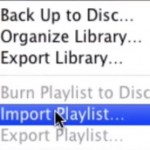
5. Choose “Export Playlist” from the File menu. This will generate an XML file of all Playlists.
On the new computer:
1. Move/load your music on the new computer
2. Import the XML file by selecting “Import” from the File menu
3. Select “Preferences” from the “Edit” menu
4. On the “Advanced” tab “Change” the “iTunes Music folder location” to the folder that contains the newly moved music files.
5. Make sure “Keep iTunes Music folder organized” is checked and select “OK”
6. From the Advanced menu select “Consolidate Library” and click “OK” to the dialog window.
7. You should now have your music without “My Rating”
8. Now go to each of the 5 (regular) Playlists and “Select All” (Ctrl+A)
9. Right mouse click, Select “My Rating” and choose the appropriate rating for the playlist
10. Once complete for each of your ratings you can delete the 5 (ratings) Playlists
charlie said,
July 20, 2006 @ 12:51 am
OR how bout this:
make 5 playlists, one for each numer of “stars”
export those 5 playlists
import them in the new computer
give all the songs in each of those playlists the corrensponding number of stars using select all + command i
Paul said,
August 6, 2006 @ 3:13 pm
I recently purchased a new computer (PC) and transferred all of my iTunes music over to it from my old computer, no problem there. However, I was not successful at transferring any of my numerous playlists, it will take me hours to recreate my playlists. Is there a way to import the playlsits and where on the computer are they stored? I have done searches by playlist names and came up blank. Thanks.
Gina said,
August 21, 2006 @ 9:52 am
Well it appears that there are several methods that can accomplish this process. I know that every time that I have had to change from one PC to another I have use StompSoft’s Easy PC Transfer to move all of my files, including my iTunes libraries and play lists. I have done this several times now with no problems at all.
Paddy Dignam said,
September 3, 2006 @ 4:48 am
A slightly more generalized recipe:
01. Ensure iTunes is closed on target computer
02. Delete Library.itl and Library.xml files in target computer
These are usually found in:
Documents and Settings\\My Documents\My Music\iTunes
03. Open iTunes on source computer
04. File->Export Library
05. If your MP3 files are located in the exact same drive/folder, go to step 08.
06. Open the .xml file created in step 4. with an xml editor like Xpontus
http://xpontus.sourceforge.net/download.html#download
07. Use the Edit->Search or Replace function in Xpontus to match target to source directories.
Example: If your source MP3 files are in
C:\MP3 and target are in D:\MP3
Find What: C:/MP3 Replace With: D:/MP3
NOTE - Backslashes become forward slashes in XML file!
08. Open iTunes on target computer
09. Use the File->Import command to import your exported (& maybe edited) library.xml
10. Done - All ratings should transfer after the import.
David said,
September 7, 2006 @ 1:05 pm
Turns out that creating 5 playlists, exporting them as *.txt files and importing them in the other computer and reassigning ratings was the best solution for me since I didn’t have all my files in the same folder in the new computer.
Neither I wanted to arrange the files in the same order as the original computer nor finding/replacing paths in the *.xml file.
It is a very clever and simple way to solve a complicated problem.
Thanks for the idea.
steve said,
September 11, 2006 @ 3:53 pm
Using iTunes has caused my PC to crash several times and has resulted in the following error message: “Windows was temporarily unable to read your hard disk drive. This problem is general in nature and unfortunately we are unable to determine the specific cause of the read error from the error report. In most cases this problem is temporary and can be ignored; however, if the problem is occurring repeatedly we recommend you follow the additional troubleshooting steps in this article.”
As a result of this i have decided to instead use Windows Media Player 10. My new problem is that i am having problems exporting my iTunes library into Windows Media Player 10. I tried to do it as an .xml file but the “add to library by searching computer” dialogue box that pops up states that the search and status are “completed”, percent complete is 100, but that 0 files have been added. Any solutions/ suggestions?
emmarie said,
October 25, 2006 @ 12:15 pm
Okay, I think I messed up. All of my music was saved to a external drive that died. I had a back up of most of the music on another drive, but it was all over the place - more than likely this drive is the original copy of all of the music and when I first set up iTunes it’s where I copied everything from. I thought I could just consolidate it all by copying all the music to one folder on a new drive and then change the folder in iTunes and iTunes would recognize it. But all I have is a list of 4000 songs in iTunes with each one claiming that it can’t find the original song and would I like to find it. Before making any more mistakes with my impulsive blundering, if I import the music will I just have an iTunes with multiple entries for each song? One as a new entry and one the old that still can’t find the original?
Anyone have any suggestions for my next move? Do I have any hope of retaining all my hard work and hours and hours of reorganizing poorly named and categorized music?
Thanks for any help.
Collin said,
November 10, 2006 @ 6:42 am
To remove the duplicate songs (on a Mac anyway), select your library and goto View>Show Duplicates. It’s not perfect and only goes by title, but it makes removing them a bit easier. Also when you’re done you need to click “Show All” at the bottom, to see the rest of your files.
Sarah said,
November 27, 2006 @ 11:33 am
Thank you so much for posting this tip. I made a small donation to show my gratitude for this extremely helpful information.
Aaron said,
November 28, 2006 @ 3:36 pm
I had success following the instructions all of you provided. Thank you! Here’s one additional thing I did: I exported the entire iTunes library before the transfer. Then, to construct the new library, I imported all of the xml files corresponding to each playlist first, then I imported the Library.xml file, to fill in the gaps. If a song is already in the new library, it does not create a duplicate. In this way, I believe I managed to move every file. Doing it the other way around (importing the entire library, then the playlists) did not seem to work: if it was already in the library, it did not get added to the playlist.
thinker said,
December 4, 2006 @ 10:56 am
I had the same problem. First I exported the library on my windows pc(iTunes>File>Export…), then I copied the mp3 folder on the mac. On the mac I created a new iTunes library, then I set the path to my mp3 folder in the iTunes settings. I importet the pc-library in my mac itunes and it worked. I had my counters and my ratings. Sorry for my bad english.
Miguel D said,
December 28, 2006 @ 1:22 am
Hey just wanted to thank you for the info, you saved me quite some trouble. A note for Windows users, I used UltraEdit-32 which worked perfectly to replace the file paths. I tried Word 2007 but for some reason it couldn’t open the XML file. Might be helpful to those that don’t have TextWrangler. Thanks again!
Helen said,
December 31, 2006 @ 3:36 am
I found this tip a good idea if you want to export/import an entire collection with ratings. However, I have a scenario where I sometimes rate music at work (win 2000) and sometimes at home (xp or mac osx). I don’t have an ipod - all the data is on a gmini archos 20gb. If you don’t want to do the whole database import/export scenario - here’s a trick I came up with. Store the rating in a id3 field (I use comment) so for e.g. if rating is 5 star, the comment field should start with 5. You don’t even need to overwrite any existing comments - just insert the rating at the beginning of the field. Now the rating is effectively stored in the mp3 file itself. If you want you can sort the tunes by comment to reassign ratings in another database, although you can also just use the comment in setting up your smartlists etc. I have been using this for nearly a year now, and although it’s not the 1-click ideal I would have liked - other people might find it useful at a pinch
AL said,
January 6, 2007 @ 12:16 am
to transfer songs from 1 computer to another, just download a program called yam ipod. on your new computer, hopefully itunes has not been installed yet so that yam ipod can work properly. just upload all of the songs from your ipod onto your new pc with this program and it will al be put into 1 folder without the hassle of having scattered music and dud and duplicate songs.
Monica said,
January 6, 2007 @ 3:50 am
I’ve tried this, and it works, except that my songs are skipping on the new computer where they were not skipping on the old computer, has anyone encountered this?
Axel said,
March 5, 2007 @ 1:24 am
You can also use iRating for tranfering the iTunes ‘Library only’ items like ‘Rating’ or ‘Playcount’ to the music tracks. On the new computer iRating imports the items back to the library.
http://cp194838-a.landg1.lb.home.nl/index.htm
Axel
pbaron said,
July 1, 2007 @ 10:27 pm
I was looking into transfering my iTunes Music from my old PowerBook G4 to my new MacBook and found this page… Even though I couldn’t exactly find what I wanted here, I wanted to share my experience.
Both computers were using version 7 of iTunes in osx 10.4.10 and I managed to successfully transfer my itunes music keeping all metadata such as play count, date added, last played etc as well as all the playlists. Both iTunes were set as managing the collections, they were both set to copy and store music in my User/Music/iTunes/iTunes Music folder.
Here is what I did.
This is dead easy!
1. make sure both versions are set as described above.
2. restart the old computer in Firewire mode. Copy the contents of the “iTunes Music” folder (all your music) to the corresponding folder in the new computer and also copy the “iTunes Library” file that sits in the “iTunes” folder, to the corresponding folder on the new computer.
3. launch iTunes on the new computer, it will update its library automatically and all your music, metadata, playlists will show up.
4. done.
Couple notes:
* I would “deauthorize” your old iTunes before transferring the music, especially if you have purchased music in the iTunes Store.
* I would rename any album name that has a “.” in it to get rid of the dot, as iTunes replaces the . by a “_” in its folder structure and the new iTunes will think it has lost those songs that you will then have to manually go and reassign one by one.
Dr. Dizzy said,
July 25, 2007 @ 6:19 am
HOWTO: Move your iTunes music while preserving library data (when you don’t let iTunes manage your music library)
THIS IS THE SOLUTION TO KEEP RATINGS AND PLAYCOUNTS IF YOU TRANSFER AN iTUNES LIBRARY
Source:
http://hifiblog.com/past/2006/05/11/howto-move-your-itunes-music-while-preserving-library-data-when-you-dont-let-itunes-manage-your-music-library/
Copy of some of the text:
… if the ITL file is corrupted or damaged, then iTunes will revert to the XML file in order to rebuild it (and consequently, your library data). So the plan is to edit the XML file to reflect the changes in our file paths, and somehow damage the ITL file in order to get iTunes to rebuild it from our revised XML file. If this sounded a bit complicated, worry not—we describe the actions needed step-by-step below:
1. Quit iTunes.
2. Backup your iTunes Music folder—this contains your library data. Now that it’s relieved from your podcasts and iTunes rips it’s considerably lighter too, so do an additional backup or two just to be on the safe side. Do this. Now
3. Move your music files (those indexed by iTunes that are neither iTunes podcasts nor iTunes rips) from the old location (say, C:Documents and SettingsUsernameMy DocumentsMy MusicNon-iTunes) to the new location (say, D:MusicNon-iTunes).
4. Open the “iTunes Library.itl” file. Select all text (Ctrl+A) and delete it. The file is now blank, with zero characters on it—save it. iTunes Library.itl’s filesize should now be 0 bytes. (This is important, as Schmolle notes, because some unicode aware editors—e.g. UltraEdit—may add invisible characters to the beginning of the file.)
5. Open the “iTunes Music Library.xml” and do a global search and replace with your text editor of choice. A screenshot of how this is done in EditPad Lite, a freeware text editor that’s light and powerful follows after the end of this list.
6. Save the XML file.
7. Launch iTunes. A prompt with a progress bar will come up—iTunes is rebuilding your library. Depending on how powerful your computer is and the size of your music library, this may take a while. When this ends, iTunes will come up with a message saying that the library file was corrupted/damaged and it tried to rebuild things for you. Press “OKâ€, iTunes finally launches.
8. Check to see if all your music and playlists are there, and if library data (play counts, etc.) has been preserved. (Hopefully everything’s fine.) You’ll also notice a couple of additional static playlists for your podcasts, videos, etc. UPDATE: Simon notes in the comments section:
As a minor aside, this approach ‘loses’ the date and timestamp when the file was originally added. This instead becomes the date and time that the track was (re)added to the library during the rebuild. That said, while this slightly messes-up any ‘recently added’ playlists, it somehow maintains the correct sequence (i.e. the rebuild seems to occur in the same sequence in which the mp3s were originally added, so one can still sort the library/playlist by ‘date file added’ and see the newest ones at the bottom).
9. You’re almost done.
(EditPad Lite screenshot—click for larger size:)
By almost we mean:
all the columns in iTunes have been resetted. You’ll have to re-select those columns that you want to be viewable for each playlist, and resize them if necessary.
your podcast subscriptions have been lost. Do the following:
1.
Go to Edit → Preferences → General and see that “Show Genre when browsing†is checked √). Press the “OK†button.
2. Choose Edit → Show Browser.
3. Go to your Library. From the first column of the browser (the Genre one), choose “Podcastâ€. In the third column of the browser (Album) those albums you see are the podcasts you were subscribed to do. Click on each “album†(podcast), choose all of its “songs†(the podcast’s shows), and drag them to Podcasts in the Source column—see screenshot after the end of this list.
4. Go to Podcasts, you’ll now see a collapsed entry for the podcast you just dragged and next to it a “Subscribe†button—click on it to re-subscribe to this podcast. (If you click the arrow to expand the entry you’ll see that all of the podcast’s shows that you dragged from the Library are there.)
5. Repeat process for each podcast you want to re-subscribe to.
(Screenshot that shows how to move podcasts from the Library view to Podcasts—click for larger size:)
You’re done, that’s pretty much it.
Thanks to Schmolle—without his findings I’d have probably never figured that out. I just brought his guide a bit up-to-date, and added Part 1 and the podcasts section.
If you’re on a Mac, the process should be similar except your “iTunes Library.itl” file is simply “iTunes Library” (without an extension). (UPDATE: Rich confirms that it works.)
For those switching to Mac and wanting to carry their music and library data over, I’d like to know if the following works (i.e. AFAIK nobody’s tested this):
1. blanking your “iTunes Library” file (on the Mac)
2. bringing over your “iTunes Music Library.xml” (from the PC) revised with the updated filepaths (for the Mac)
Finally, if you want to move your music from a “traditional†hard drive to a NAS (network attached storage) device, you may also want to read Simon’s comment.
If you try it, let me know how it went. Furthermore, if you’ve got anything to add, or feel like sharing a relevant tip or two, leave a comment.
cynthia said,
August 11, 2007 @ 9:56 pm
hey that was some great information!!! (^_^)
teal said,
August 16, 2007 @ 7:16 pm
about step 5, delete redundant files…
on a mac you can go to the ‘View’ menu and select ‘Show Duplicates’.
this makes the process infinitely easier. It shows any tracks with the same title. It’s awesome.
Joe said,
August 27, 2007 @ 5:56 am
I just went from PC to PC. My entire library came over and I was able to import to get my smart playlists over. All of my tags came over EXCEPT for my ratings. It’s too late to go back and use the suggestion to create a smart playlist for each rating. Am I screwed? My ratings are the key to my smart playlists. Windows Media Player sees all of my ratings, ironically. My iPod is close to dying, so if I can’t get this working I think I’ll get a Zune instead.
Matt said,
September 24, 2007 @ 9:46 pm
I took your instructions here and automated them. I created a free utility called iTunes Library Mover. Thanks for the great instructions!
If you (or any readers) want to use my utility just head over to http://www.get411.com and download it for free.
Matt said,
September 24, 2007 @ 9:46 pm
I took your instructions here and automated them. I created a free software utility called iTunes Library Mover. Thanks for the great instructions!
If you (or any readers) want to download and use my utility just head over to http://www.get411.com and download it for free.
Amy said,
November 9, 2007 @ 9:52 am
Hey, fellas. I’ve jacked up my iTunes and I’m hoping you have the heart to help a random poor soul who just happened upon your page.
A friend sent me an external hard drive with a ton of music on it-more than my iMac can handle w/o getting really really bogged down. I’ve been wanting to clear off some space on the ol’ iMac anyway, as I have so many photos iphoto freezes my computer sometimes when I open it. My goal is to move my photos and music to the external drive and clear them off the mac’s hard drive. I would like iTunes & iPhoto to access my music and pics from the external drive.
Here’s how I botched it:
Rather than use the “consolidate library” function, which I didn’t know existed, I copied the contents of my iTunes music folder over onto the external drive and then imported them into iTunes. I then changed iTunes path so it would grab music out of the external drive. I was nervous about doing it wrong and losing my old music, so the original music folder is currently residing in my unemptied trash.
B/c of my foolish actions, I now have double (and sometimes even triple) copies of my original music b/c itunes is pulling it from both the external drive and the trash. I’ve experimented with deleting a couple of songs from the trash and I get that can’t-find-it-exclamation point.
Like the other people facing the transfer problem, I’ll lose my playlists when I finally throw away the original folder and go with just the external drive. The ratings didn’t transfer, either.
I tried to undo the import so I could go with the consolidate option, but I can’t undo it. Would it even help with anything if I could do it?
Opinions, please.
elisa said,
November 17, 2007 @ 5:00 pm
is there a different way to transfer audio books because this didn’t work for me
elisa said,
November 17, 2007 @ 5:00 pm
is there a different way to transfer audio books because this didn’t work for me
Fletch said,
November 19, 2007 @ 2:11 am
I’ve been trying to transfer an iTunes library from one iBook G4 to another. I did it as an e-mail attachment ‘cos I didn’t know any good way to do it and I had the luxury of leaving it sitting for hours. What I have now is a file that says data, rather than mp3. I’ve tried importing that into iTunes but without success. Any ideas? Nobody get too technical ‘cos I’m thick.
Bruce said,
November 28, 2007 @ 7:03 pm
Fletch: There are a bunch of ways, but the way I would do it is. Shut down the Mac with the music you want on it. Connect a Firewire cable between the 2 Macs. Startup the shutdown Mac while holding down the “T” key. This will make that Mac appear as a simple, connected Hard Disk, and is called Firewire “Target Disk Mode”. Impressive name, no?
Start up iTunes. Chose “Add to Library…”, under the “File” menu. Navigate using your way on the other hard disk (the Disk Mode computer’s) to the location of the music. Most likely it is:
/Users/bhoglund/Music/iTunes/iTunes Music
Select the music you want to import (Select all my Command-A, or click the top most file, scroll down & while holding the shift key, click the bottom file). Then click the “Open” button.
It should not take long, as Firewire is very fast. The biggest wait will be for your importing computer to sort & organize all the imported songs.
Good Luck, and I hope this helps you.
Nelson said,
December 3, 2007 @ 6:38 pm
Can anyone tell me why Apple has not “fixed” iTunes to make it possible to move the ratings with the library?
karen said,
January 2, 2008 @ 1:38 pm
PLEASE help. Wanting to “copy” my itunes music from my old gatewayPC with 1 internal and 1 external HD to my new Imac. I have an external HD using usb. I want to have the music on BOTH computers. I am totally baffled!! I don’t care about playlists or ratings etc. just the music would be fine!
Ben said,
January 11, 2008 @ 4:05 am
Hi Guys, thanks for the tips. I have just been trying to tranfer playlists from an old PC to a new one. The problem was that I only had the hard drive from the old one, so could not export the playlists. After a bit of fiddle I have found a solution to this. If you want to do the same follow these steps:
1. Copy all your music files into the Music folder on your new machine.
2. Copy the iTunes Music Library.xml to the iTunes folder on your new computer (replace the existing one if it is already there).
4. Delete the iTunes Library from the new machine if there is one.
3. Open the .XML file in word or similar.
4. Go to properties (PC) and note the location, or Get Infor (Mac) and note the location next to ‘Where’, for any of the folders of music on your new machine.
5. Do a find and replace in Word to replace the links to each folder (replace all). If your music was stored in several locations (i.e. in Music and in iTunes Music) on you old computer, you will have to do a find and replace twice for both of these folders.
6. Once all the links look correct, save the file.
7. Start iTunes and wait for it to reload all your music.
Hope this works, it’s a bit hard to explain but does work! Hope it helps someone…
Sam said,
January 16, 2008 @ 10:04 am
Hi guys,
I use itunes on my work and home laptops and currently move music between the two using an external harddrive to try + keep the same music on both. I’ve realised this doesnt carry across ratings + playcount, playlists etc.
Work laptop has iTunes Music Folder on its local c:\ harddrive.
Home laptop has iTunes Music Folder on the external harddrive.
I move music between the 2 computers using a different folder within the external harddrive.
Is it possible to set both itunes to use the same external harddrive as the “iTunes Music Folder”? Does this also mean ratings + playcounts etc all count between both?
I only sync my ipod with my home laptop so thats not a problem as i mainly listen to music through the laptops anyway, but really want the playlists, ratings + playcoutn etc to be sync’d between the 2.
Hope someone can help me please…. thanks in advance
Barry said,
January 21, 2008 @ 10:49 am
What about data disc? Copy itunes on to disc then load into PC ?? does it work? . People at the Applestore seem to think so
karen said,
January 30, 2008 @ 9:20 am
HELP! I changed computers and everything transfered as planned but now 3/4 of my playlist has an exclamation point to the left of it when I try and move it to a new playlist.An error message pops up saying that the file can not be found- would I like to locate it and of course, I can not locate it. Support won’t help me because of course my warranty expired. Can someone help? I have actually paid for all of these songs from iTunes and they may as well have not even existed now.
steve said,
February 4, 2008 @ 8:12 pm
I have a lap top pc that contains my itunes library and works with my ipod. This library is backed up to a plug in ‘my book’ drive. I want to transfer my library from either the back up drive or the lap top to a new pc onto which I have just downloaded itunes. I don’t bother with playlists or ratings. How do I go about this?
Steve
rik said,
February 8, 2008 @ 1:29 pm
What I’m wondering is it possible to transfer songs over-the-air; that is, over a network? I have two computers using the same iTunes account, and I hate having to use a flash drive to transfer files. Is there a way to transfer thru the Shared Library?
Cyberin said,
February 20, 2008 @ 3:59 pm
For how to migrate everything of an iTunes library including cover art, play counts, ratings etc in 9 simple steps see a guide in
http://tekfreak.blogspot.com/2008/02/how-to-move-your-itunes-library-from-pc.html
john said,
February 23, 2008 @ 12:16 pm
I’ve got a problem. I don’t have any music in my actual iTunes library but everything is on my iPod itself. Is there any better way to back up all my music besides burning them all onto blank CDs? I’ve got 15 GBs of songs and this would take way too many CDs. Please help, thanks
Grace said,
February 27, 2008 @ 6:36 pm
I am getting a new lap top soon and I have over 1000 songs on my itunes library, I need to know a way how to transfer my itunes from one lap top to the other. Please help me or else I will loose over 1000 dollars. PLEASE HELP!!!
Angela said,
June 7, 2008 @ 5:37 pm
Just got my first Mac. The PC is dead so I only had the hard drive and thought I was done in. But Ben’s answer totally worked!! I spent half the day looking for a solution on the internet and was about to give up. If you only have the hard drive just copy the .xml library to an external drive and find/replace the path, then use iTunes on the new machine to import the edited .xml file. Playlists, playcount, last played — all of it came of over and the shiny new MBP is now rocking out. Thanks, Ben! I am not a techie but your instructions were clear and easy to follow. Happy dayz…
No if someone tell me why the mac keeps loosing its wireless connection and requiring the password to be re-entered I will be high stepping.
jgm said,
July 4, 2008 @ 2:19 pm
I downloaded my itune library from my desk top to a flash drive. I inserted the flash drive into my new laptop and imported the songs to itunes. It loaded fine but I have to keep the flash drive in the usb to listen to the songs. If i remove the flash drive and try to play a song, I get a message saying that the song cannot play because the original file could not be found. How can I play the library without having to keep the flash drive in the usb at all times?
SadieLady said,
July 6, 2008 @ 7:10 am
These posts have been really informative! As I try this out myself I want to make sure I don’t screw up my iTunes (again!). Any help is appreciated!! I have my iTunes installed on a Windows PC. Several months ago I tried to reset the source of my iTunes music to my external hard drive. I changed the source properly, but I lost all of my playlists, which I completely relied upon. Now the only place that has my playlists is my iPod (which I haven’t synched so it wouldn’t get over-written), and my external hard drive has all the music backed up on it. I now need to transfer my iTunes from my current Windows laptop to another Windows laptop (that doesn’t have iTunes installed yet). I want to transfer my iTunes properly, deauthorize the old one, use my external hard drive as the source for the music on the new laptop, and I want to know if I can use my iPod to reestablish my playlists in my iTunes on the new laptop. I imagine this would be a multi-step process but I’m not sure where to start. Any ideas? THANKS!!
Lincoln Williams said,
July 12, 2008 @ 4:55 pm
I have the same problem as jgm (July 4th)…..transfered all the songs to a thumb drive and transfered fine. Once thumb drive was removed it says can not be played because original file can not be found. How do i get the songs to play with out the drive in place?
Thanks -LW-
LHK said,
July 23, 2008 @ 8:14 am
I have an old Nano and old software on my computer. I recently purchased a new nano and would like to copy my library to the new nano and still keep the songs on the old one as well. I am getting a prompt to download the new software, but when I download it I get a message saying that the software already exists and do I want to overwrite? If I do this will I lose my library? And can if I upgrade to the new software can I still add music to my old ipod?
nick said,
July 25, 2008 @ 5:15 am
hey, if you want to do what you are suggesting, i reccomend just going in and copying the
:\ipod_control\music folder and then add that folder to itunes… prob is you may get duplicates with your songs…
if anyone needs further help restoring an itunes library from your xml file only… i have a python script that may help… (python knowledge would help a lot, its rarther crude)
email me if you want it… n_d_89@hotmail.com
Nojo said,
July 25, 2008 @ 7:37 pm
I’ve put together a quick-and-dirty app that transfers ratings and play count (either transfers the play count or adds it) from one library to another (that already contains the songs in the library). Linked in my name. If there’s interest, I can spend some time making it better.
Jay said,
August 12, 2008 @ 12:54 pm
I’ve been using a Windows PC for my whole life building up a huge iTunes library with tons of everything (videos, movies, thousands of songs, ect.) We just got a new PC that’s beastly except one problem, I have no clue how to copy my entire library! Yes, I’ve read long threads of people saying simply drag music files but I need a simple way to transfer everything including my purchases from the itunes store. If that’s too much to ask for, sorry for wasting your time. If you’re nice and care about me, send me an email: walmartman7@yahoo.com
I have the 80G version of the iPod Classic (Video)…if that makes a difference in the outcome.
THanks!
Chelsea said,
August 13, 2008 @ 12:56 pm
I have an issue with my ipod. I had about 800 songs on my itunes library and it was all going good from there, but a couple of days ago, my computer got restarted. I then tried connecting my ipod to add new songs, but a message popped up saying “Ipod is synced with one library and cannot be synced to 2 libraries at once. Erase and sync?” Now, I want thos ew songs on the ipod, but I do not want to delete the old ones. Is there anythin I can do to avoid erasing everything? I’d appreciate the help.
Albert said,
September 3, 2008 @ 4:56 am
Thanks for the tips folks !
I just imported the xml file , exported from the old computer, and the audio files where there again.
Thanks